
You probably never thought a speaker or light bulb could know so much about you, and that’s exactly why you should take control now. Start upon checking which apps and accounts can access cameras, microphones, location, and stored files, and revoke any access that looks unnecessary or old. Focus on the most sensitive permissions initially, like camera and microphone, then move to location, contacts, and cloud backups. Use two factor authentication, separate guest networks for guests and IoT devices, and keep firmware up to date so revoked or reduced permissions actually stay effective. Follow a simple yearly checklist to keep things tidy, and should a device stops working after you change settings, try reauthorizing only the needed permission rather than restoring full access.
How to Audit Smart Device Permissions Now
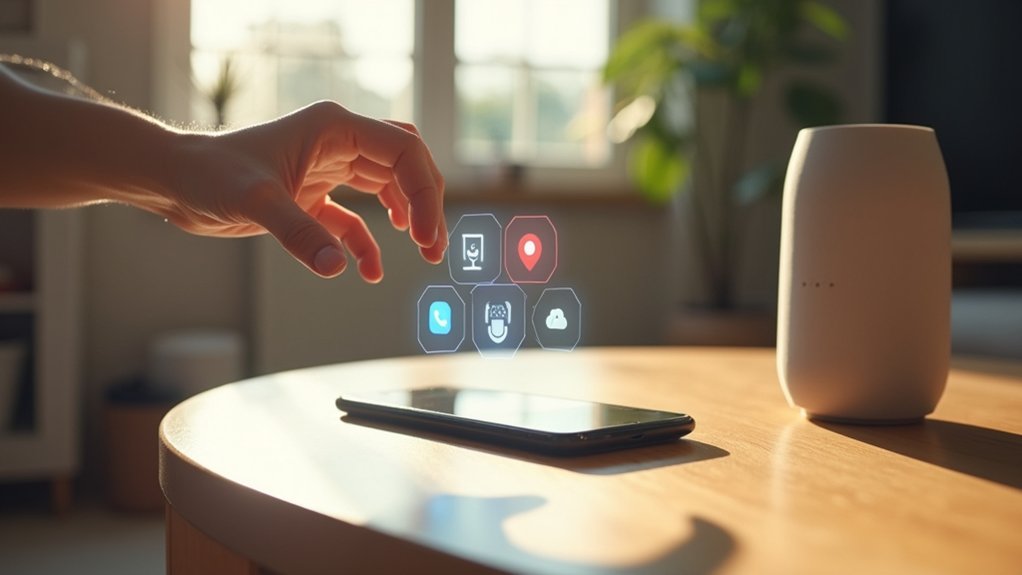
In case you want to protect your home and feel more in control, start through auditing your smart device permissions now. You’ll begin with making a simple device inventory so you know every camera, speaker, and thermostat that connects to your network.
Next, use permission tracking to list which apps and accounts can access each device. Check settings on both the device and its companion app. Revoke access for services you don’t recognize.
Update firmware and change default passwords as you go. Put devices on a guest network provided you can. Invite family members to join the review so everyone feels included.
Repeat this audit quarterly and following major updates. You’ll build confidence and protect the people you care about.
Which Smart Device Permissions Are Most Sensitive : And Why
Which smart device permissions matter most, and why do they feel so risky? You deserve to feel safe in your space, so allow us to look at permissions that give devices real reach into your life. They connect to your routines and to people you love.
- Location tracking lets apps map where you live and go, so you lose control over your movements.
- Microphone access can hear private conversations, making you uneasy in your own home.
- Camera control can watch rooms and moments, which feels like a breach of trust.
- Contact lists expose friends and family, risking their privacy through your device.
- Sensor and health data reveal habits and conditions, linking to identity and safety concerns.
You can set boundaries that respect you and those you care about.
Why Default Settings Over‑Grant Access
Because companies want your device to work right out of the box, default settings often give apps and gadgets more access than you’d expect, and that can leave your home feeling less private. You’ll notice manufacturers preenable features to simplify setup and speed use. That comfort trade off is called default over permission and it leans toward ease, not your privacy.
You could feel safe, but those broad defaults create security vulnerabilities that strangers can exploit. You belong with others who care about control, so know this: defaults are starting points, not rules. Take time to review permissions, ask questions, and change settings you don’t like. Doing this helps protect your family and keeps your space yours.
Quick Permissions Audit for Phones, Speakers, and Hubs
You’ve already seen how default settings can leave your home more open than you believe, so now let’s walk through a quick permissions audit for the phones, speakers, and hubs you use every day.
Start upon checking recent permission request timing to spot surprises and observe situational prompts that explain why apps ask for access. Be gentle with yourself as you do this; you’re part of a community learning safer habits.
- Review microphone and camera access for each device and revoke anything unnecessary
- Check location sharing and set it to only while using the app whenever possible
- Inspect contact and calendar permissions for apps that don’t need them
- Confirm smart hub routines don’t expose personal data unnecessarily
- Look for expired device links and unlink unused accounts
How to Revoke or Limit Permissions Safely

Once you decide to limit an app’s access, start gently and with purpose so you don’t break things you rely on. You can revoke location, mic, or photo rights step after step. Check access notifications so you see who asks for data. Use permission expiration for temporary needs and set alerts to review later. Evaluate apps after each change and keep a list of trusted tools. Share choices with family so everyone feels safe and included.
| Action | When to adjust | How it helps |
|---|---|---|
| Revoke unused | Monthly | Reduces risk |
| Limit scope | Upon request | Keeps function |
| Expire access | For guests | Forces review |
Balancing Privacy and Convenience: Phone, Speaker, and Hub Examples
How do you keep your phone, smart speaker, and home hub useful without handing over every detail of your life? You can, and you belong to a group that cares about sensible balance.
Face privacy challenges head on while accepting convenience tradeoffs that fit your life. Start with clear, kind rules you share with family. Then tweak settings so devices do what you need and nothing more.
Here are practical steps to guide you:
- Limit microphone and location access to apps and features you trust
- Set voice history deletion and require confirmation for purchases
- Use separate guest networks for visitor devices
- Turn off unused integrations that link apps and hubs
- Review permissions monthly and adjust as family routines change
Tools to Automate and Monitor Smart Device Permissions
If you desire peace of mind without wrestling every evening with settings, automated tools can take the heavy lifting off your plate and keep device permissions in check. You’ll find apps that scan devices, suggest sensible defaults, and send automated alerts once an app asks for new access.
Use permission dashboards to see all device and app permissions in one place. You can set rules that revoke access after a time or limit location sharing to only during your use of an app.
These tools let you include family members, assign trusted reviewers, and get gentle notifications to review changes. They build community by helping everyone feel safe, informed, and supported while keeping your smart home working smoothly.
Maintaining Control: A Simple Yearly Permission Checklist
Once a year, you should run a simple permission audit to check which apps and devices still need access to your data and accounts.
Start through revoking unused access, then update app settings to tighten what each device can do and see.
In case you make this a short habit, you’ll feel more in control and reduce the chance of surprises.
Annual Permission Audit
Although it could feel like a chore, doing an annual permission audit gives you steady control over every smart device in your home and helps stop surprises before they happen.
You’ll feel more connected to others in your household once everyone trusts that devices follow permission compliance and show clear data transparency.
Start off inviting family to help and set a quiet hour to review each app and device.
- Check which apps have camera and microphone access
- Verify location and smart speaker settings alongside each user
- Confirm account sharing and guest access rules
- Update passwords and enable multi factor where offered
- Observe devices that need firmware or privacy policy review
This simple ritual builds shared confidence and keeps your home safer.
Revoke Unused Access
How do you keep old permissions from quietly turning into risks? You belong here and you can act.
Start with listing apps and devices that still have permissions. Look for unused permissions and mark what you no longer need.
Then practice access revocation through removing access for apps, services, and forgotten accounts. Should a device link to family or community accounts, check those too and tell others what you changed.
Once you revoke access, sign back in only whenever you need the feature. Keep a simple log so you recall why you removed something.
Repeat this yearly and after big changes such as moving or new devices. That steady habit protects your home and helps everyone in your circle feel safer.
Update App Settings
In case you want to keep control of your smart devices and apps without feeling stressed, set aside a simple yearly checkup that updates app settings and keeps permissions tidy. You belong with others who care about safe, friendly tech.
Start through opening each app and checking for app updates and reviewing security settings. Take calm steps and you’ll protect your household while staying connected.
- Check for app updates and install them to fix bugs and close gaps
- Review permissions and turn off access you don’t use anymore
- Reset passwords and enable two factor options where available
- Remove old accounts and unlink devices you no longer own
- Observe apps that request sensitive data and limit their reach
You’ll feel confident and supported as you do this.
Troubleshooting: Common Issues After Changing Permissions
Once you change permissions, apps could stop connecting or lose features you rely on, and that can feel frustrating. Start through checking connectivity settings and permission lists so you can spot what’s blocking access or which feature was turned off.
In case performance dips after a change, try restarting the device, clearing app caches, or temporarily restoring previous permissions to see which adjustment caused the issue.
App Connectivity Problems
Should you’ve just changed app permissions and your smart device stops talking to apps, don’t panic; you’re not alone and this is fixable. You could see connection delays or sync failures. Stay calm, you belong to a group solving this together.
Check app permissions initially, then network settings, and keep your device on the same Wi Fi. In case problems persist, try a gentle restart and reauthorize access for the app.
- Verify app has required permissions for network and background data
- Restart both device and app to clear temporary blocks
- Reconnect to Wi Fi or switch to wired when available
- Update apps and firmware to avoid compatibility glitches
- Reset only relevant permissions before wider changes
Missing App Functionality
Although you could feel frustrated once features vanish after changing permissions, you can usually get things working again without stress. Whenever an app loses access it might show missing permissions or app limitations.
Start off by checking the app settings and the device permission panel. In case you see denied items grant only what the app needs. Next reopen the app so it refreshes its access.
Should a feature still fails, look for in-app settings that toggle functions off whenever permissions change. You can also reinstall the app to clear stale states but back up any data initially.
Reach out to the app community or support in case steps don’t help. You’re not alone and small fixes often restore your full experience.
Device Performance Issues
In case an app suddenly runs slower or a device starts acting up after you changed permissions, don’t panic; you can usually fix this without a tech thorough investigation. You’re not alone and you’ll get it working again.
Check whether a permission change caused background processes to spike, which can lead to battery drain or network lag. Try simple fixes initially and feel confident that small steps help.
- Restart the device to stop rogue processes and clear temporary caches
- Review app permissions to restore needed access without oversharing data
- Close background apps and check battery settings for power hungry features
- Evaluate your Wi Fi and cellular connections to rule out external network lag
- Update apps and firmware so performance patches and fixes apply
Frequently Asked Questions
Can Smart Devices Share Data With Law Enforcement Without My Consent?
Yes. Companies can be compelled by warrants or court orders to turn over device data to law enforcement; your smart toaster will not request your permission. Monitor what data companies collect and share, scrutinize consent practices, and demand clear disclosures and accountability.
How Do Firmware Updates Affect Permission Settings Automatically?
Firmware updates can change app permissions or replace custom access rules, so check each permission after installing updates. Follow specific vendor or device communities that publish detailed update notes to stay informed and manage your device settings.
Can Guests Access Smart Devices Without My Knowing?
Yes. Unless you create distinct guest accounts and grant temporary permissions, visitors may control devices without your knowledge. Set up separate user profiles, assign time-limited access, and check device activity logs regularly so you can verify who used what and when.
Do Manufacturers Sell Anonymized Smart Device Data to Third Parties?
Yes. Some manufacturers sell anonymized smart device data to third parties. Ask for specific anonymization methods, clear opt-out procedures, and policies developed with community input so your rights and interests are protected.
What Legal Rights Do I Have if a Device Breaches My Privacy?
Think of your home as a protected space: you can bring a lawsuit, report the incident to privacy authorities, and demand remedies after a device exposes your personal information. You may assert specific data rights, pursue monetary compensation, request court orders to stop further misuse, and ask regulators to take enforcement action.
