You rely on your smart assistant every day, so you should feel safe using it. Start after turning off always listening whenever you can, lowering mic sensitivity, and removing permissions that matter least. Check and delete voice clips, lock your account with a strong password and two factor, and review third party skills before enabling them. Pick devices that process locally and update firmware often. Keep family members informed, and you’ll stay in control while keeping convenience.
Quick Checklist: Privacy Settings to Change First
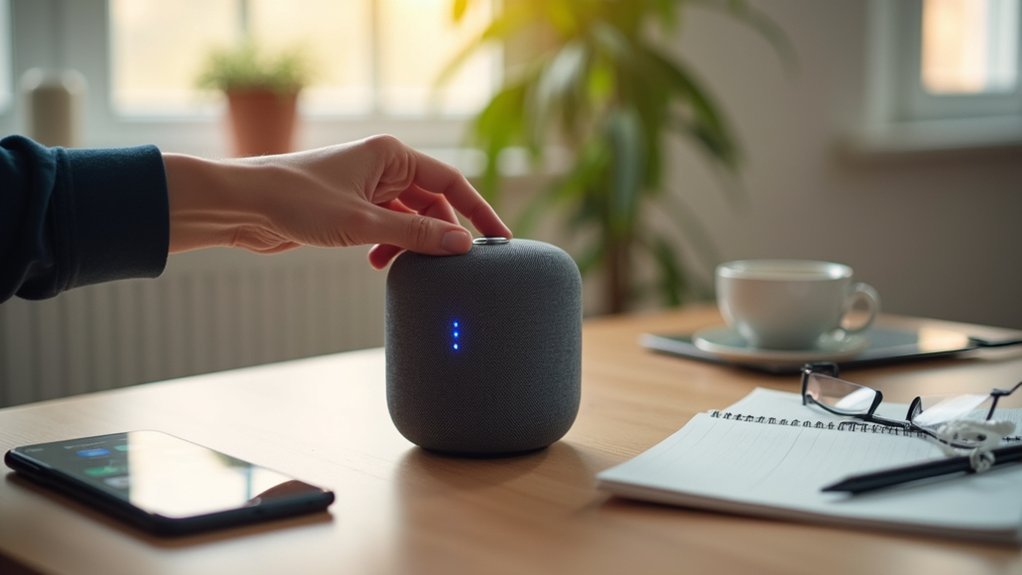
Start through opening your assistant settings and taking these simple, practical steps you can finish in one sitting. You’ll feel safer whenever you turn off always listen modes and limit voice activation to a phrase you choose.
Next, check microphone sensitivity and lower it so the device won’t pick up distant chats. Then, disable cloud backups for voice clips and set automatic deletion for any recordings that slip through.
You can also create a PIN for purchases and private commands so others in your home can’t trigger actions. Review app permissions and remove access for unnecessary services.
Pair these changes with account two factor authentication and device lock screens. Each step is small, but they add up to real control and calm.
How Smart Assistants Collect Data and What It Means
You’ll want to know what your assistant actually records, because voice data capture can include more than your commands and might be stored on company servers.
At the same time, assistants analyze situational data like location, nearby devices, and recent searches to make suggestions and personalize responses.
Grasping both kinds of data helps you decide which settings to turn off or keep for better privacy without losing useful features.
Voice Data Capture
Because your voice assistant listens for a wake word, it collects much more than the commands you give it, and that matters for your privacy. You share casual talk, background noise, and pauses.
Devices send snippets for voice transcription so they can learn phrasing and improve responses. That process can create logs tied to your account, even in case vendors claim data anonymization.
You want to belong to a trusted circle. So ask how long recordings are kept, who can access them, and whether you can delete them.
Turn off always-listen features whenever you need privacy. Prefer devices that process speech locally and let you control storage.
Check settings often and talk with family about what should be recorded and what should stay private.
Contextual Data Analysis
At the moment your smart assistant hears you, it collects more than your words; it gathers clues about where you are, what’s happening around you, and how you like to use technology, and those clues build a situation that shapes future responses.
You should know this blends audio with location, device state, and past actions to create environment aware security and smoother replies. You’ll feel safer whenever systems adapt to normal patterns. Yet that same info feeds behavioral profiling, which can feel personal and raw.
You can ask for limits, adjust settings, or keep sensitive tasks off voice. Devices that process locally reduce exposure, and vendors who share clear controls help you belong to a trusted circle. Ask, change, and stay curious.
Lock Down Voice Recordings on Alexa, Google Assistant, and Siri
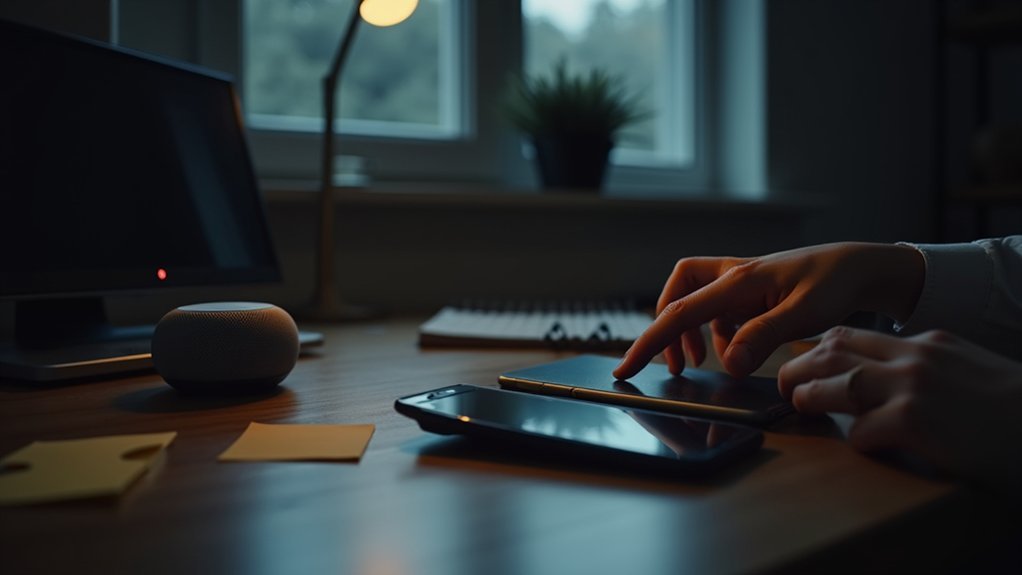
You can take control of what Alexa, Google Assistant, and Siri keep through managing your voice history in their apps.
Start with turning off or limiting voice recordings, then set auto-delete schedules so old clips don’t pile up on company servers.
These steps are simple to do and can give you real peace of mind about what gets stored and for how long.
Manage Voice History
Once you want to lock down your voice recordings on Alexa, Google Assistant, and Siri, start with grasping where those recordings live and who can hear them. You should check each app settings for voice anonymization options and choose encrypted storage when available.
Next, review your history regularly and delete items you don’t want kept. You can set auto-delete windows to limit retention and reduce risk. Also, disable shared access so household accounts don’t expose your clips.
In case device models offer local processing, prefer that to keep data on your device. Finally, use strong account security and multifactor authentication to protect stored history. These steps help you feel safer and supported while keeping control.
Disable Voice Recordings
In case you want to stop your assistant from recording your voice, start through turning off or limiting voice history in each device’s app and settings so your words don’t leave the room.
You can disable recording consent options in Alexa, Google Assistant, and Siri settings. Look for voice command logs, microphone access, and voice activation controls, and revoke permissions you don’t need. Do it together with family so everyone feels safe and included.
Evaluate after you change settings via giving simple voice commands and checking the app for saved clips. Provided a device still stores audio, disable cloud backups and choose local processing once offered. Keep checking settings after updates so your household stays in control and comfortable.
Auto-Delete Settings
After you’ve turned off or limited voice history, set up auto-delete so past clips don’t hang around forever and new ones vanish on a schedule you control.
You deserve devices that respect your space, so check each assistant and set a retention window that fits your comfort. Auto-delete cuts voice retention and starts regular data purging without drama.
Try these steps to belong to a safer group of users who own their data:
- Review settings on Alexa, Google Assistant, Siri and pick 3 month, 18 month, or custom timelines.
- Turn on automatic deletion and confirm periodic purges for unintended clips and false activations.
- Revisit settings after updates and use on-device features where available for extra privacy and peace.
Limit App Permissions and Audit Third‑Party Skills/Actions
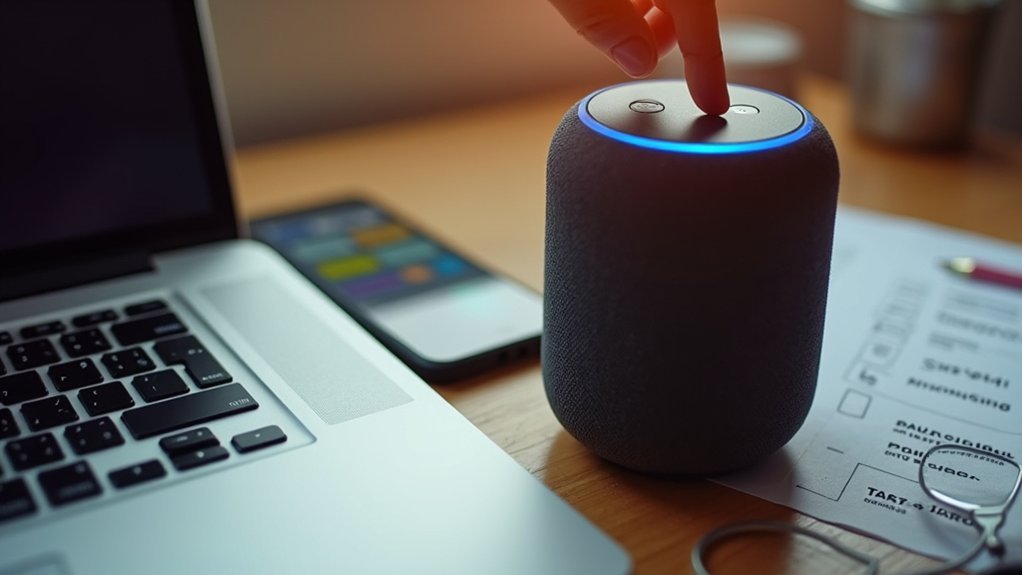
Because third party skills and apps can quietly ask for more than they need, you should check and limit permissions right away so your voice assistant only accesses what you want it to. You deserve devices that respect your home.
Start through reviewing installed skills and noting skill risks like access to contacts, location, or recordings. Use built in permission auditing tools to see who asks for what. Revoke anything that feels unnecessary.
Trustworthy developers list why data is used. In case a skill keeps asking, disable or delete it.
Share what you learn with family so everyone feels safe. Schedule regular audits, perhaps monthly, to keep control. That simple habit protects your privacy and builds calm confidence in your smart home.
Secure Smart Assistants, Connected Devices, and Home Integrations
You already know to trim app permissions and remove risky skills, and that habit makes securing the rest of your smart home a lot easier. You can extend that care across devices through insisting on strong device authentication and simple network segmentation. Treat each gadget like a trusted neighbor and set clear boundaries.
- Require unique passwords and two factor where available.
- Put cameras and voice devices on a separate guest VLAN.
- Update firmware and disable unused ports and services.
When you group devices according to trust level you reduce risk and keep routines intact. Pair hubs only with devices you control. Invite family into the process so everyone feels safe and informed. Small, steady habits protect privacy and build confidence at home.
Audit Your Account: Data Retention, Activity History, and Privacy Controls
Want to know exactly what your smart assistant keeps and for how long? You can run regular data audits to see voice and activity history, and feel confident together. Start upon checking account settings for retention policies and activity logs.
Look for dates, types of entries, and whether voice clips are stored or deleted. Turn off unnecessary history and enable auto delete where offered.
Review connected apps and revoke access you don’t recognize. Use privacy controls to limit personalization and cross device sharing.
Ask for a downloadable copy in case you want full transparency. Should something feels off, change passwords and two factor methods, then recheck permissions.
You belong in this space, and these steps help you keep control.
Troubleshoot Privacy Issues and When to Factory‑Reset
How do you tell whether your smart assistant is leaking private moments, and at what point should you take the drastic step of resetting it? You’ll notice odd activations, unexpected recordings, or settings that changed without your touch.
Keep calm. You belong to a community that protects privacy together. Follow these troubleshooting steps to act with confidence.
- Check logs and activity history for strange entries and review voice recognition matches.
- Update firmware, revoke suspicious permissions, and change linked account passwords.
- Factory reset once you find persistent unknown devices, repeated false activations, or evidence of cloud storage you didn’t authorize.
If problems continue, contact support and consider replacing the device with one that keeps processing local. You’re not alone in fixing this.
Choose Privacy‑First Devices and Alternatives

Choosing a privacy-first smart assistant starts with comprehension of what matters to you and what you can control. Pick devices that advertise on-device processing and clear hardware transparency. That means the maker shows what chips and sensors do and how data stays on your device.
You can choose brands that let you opt out of cloud backups or delete voice logs easily. Consider alternative interfaces like physical buttons, local web dashboards, or apps that never send audio to servers.
Try a small, dedicated device for home tasks and keep sensitive commands on a phone with PINs. Look for firms that pledge not to sell home activity.
Trust matters, so join user groups and ask questions prior to purchase. You’ll feel safer once your choices match your values.
Frequently Asked Questions
Can Smart Assistants Overhear Encrypted Conversations in My Home?
No. Properly encrypted data cannot be decoded by smart assistants, and voice recognition requires clear, unencrypted audio to function. Unless a device records raw audio before it is encrypted, encrypted conversations remain private from those assistants.
Do Voice Assistants Share Data With Advertisers Outside Vendor Ecosystems?
Yes. Many voice assistant vendors form concrete advertising partnerships and monetize voice-derived data; they may share or sell user insights to third-party advertisers outside the vendor ecosystem, so expect cross-platform targeting unless specific privacy settings or on-device processing prevent it.
Can Wearables Linked to Assistants Record When Assistant Is Disabled?
Yes. Even when the assistant is turned off, specific wearable permissions and the device’s connection to the assistant can allow audio capture. Review the wearable app’s permissions, remove its microphone access, and disconnect or unlink the assistant from the device to ensure your devices and others nearby remain secure.
How Do State Biometric Laws Affect Smart Assistant Data Use?
State biometric laws require explicit user consent, restrict stored biometric identifiers to what is necessary, enforce short retention periods, and limit processing to specified purposes so your community’s privacy is respected and protected.
Is On-Device AI Vulnerable to Model Extraction or Local Hacks?
Yes. Running AI locally reduces exposure but does not eliminate risk: attackers can use model inversion to reconstruct training data, apply adversarial inputs to cause misclassification, or exploit flaws to extract model weights. Mitigate these threats by applying signed and timely firmware and model updates, using secure enclaves or tamper-resistant processors, enforcing strict local access controls and runtime integrity checks, and restricting the device from performing high-risk tasks with sensitive information.