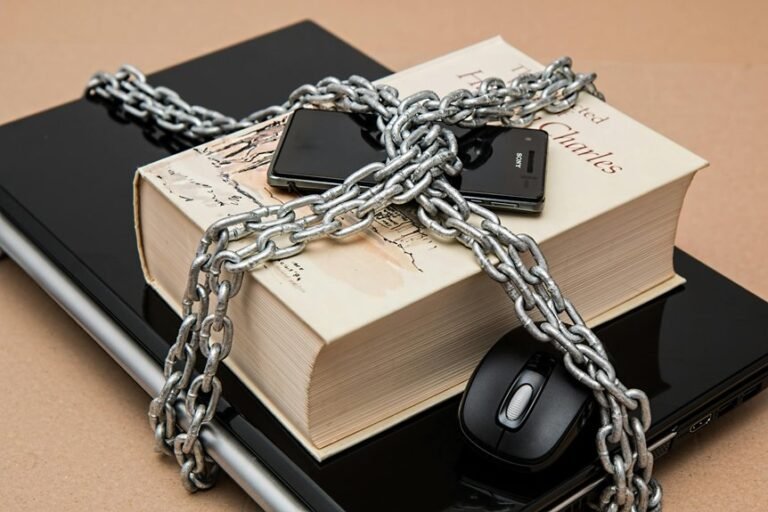
Lock your WiFi, lock your devices, and lock your privacy to feel safer at home; you’ll get clear steps that actually work. Start through changing the router admin password to something long and unique, turn on WPA3 or WPA2, and disable WPS and remote admin so strangers can’t guess their way in. Put smart TVs and bulbs on a separate guest or IoT network, use strong device passphrases, enable automatic updates, and back up encrypted settings. Add the router firewall, set simple access control lists or MAC filters, and keep firmware current on a schedule. Check device logs and set alerts for odd activity, place the router where guests can’t tamper with it, and run quick audits monthly so small problems don’t grow into big ones.
Quick Checklist to Secure Your WiFi Right Now
Start through taking a few simple steps you can finish in minutes to make your WiFi much safer.
You’ll begin via checking that your network hides obvious details and uses strong encryption rather than none.
Next, place your router where the signal reaches rooms you use and avoid pointing a signal amplifier toward public areas.
You’ll lock down physical security by keeping the router in a secure spot and limiting who can touch cables and reset buttons.
Then create a separate guest network for visitors and keep IoT devices on that isolated band.
You’ll disable WPS and remote management, enable the router firewall, and watch connected devices regularly.
These steps help you and your household feel safer and more connected.
Configure Your Router for Security (Passwords, WPA3, and Updates)
Start upon changing your router’s admin password to a strong, unique passphrase of at least 12 characters so you control who can change settings.
Then enable WPA3 encryption on your Wi-Fi so your data stays scrambled from prying eyes, and revert to WPA2 only provided your devices don’t support WPA3.
Finally, turn on regular firmware updates or automatic updates so security fixes and new protections keep your network safe.
Strong Admin Passwords
Security starts with a strong admin password, and you can protect your whole home network via getting this right. You belong here and you can secure your router without stress. Choose a long passphrase that mixes words, numbers, and symbols.
Passphrases guidance means pick memorable phrases you can tweak, like a favorite line with extra digits and punctuation. Use a password manager to store complex admin logins so you don’t have to recall everything.
Change default usernames and update passwords every 3 to 6 months or after any suspected breach. Turn on two factor authentication should your router support it. Share access only with trusted household members and remove old accounts.
These steps keep your network safer and help everyone feel protected.
Enable WPA3 Encryption
Upon updating your router to use WPA3 encryption, you stop casual eavesdroppers from reading the data your devices send and receive, and you’ll feel more confident about online privacy at home.
You should pick WPA3 Personal in your router settings whenever available, create a strong WiFi passphrase, and rename your SSID so it feels like home.
Expect Transition Challenges with older gadgets that mightn’t support WPA3. In those cases, enable a mixed mode or run a separate WPA2 network for legacy devices, balancing security and Backward Compatibility. Check each device after switching to verify it reconnects.
In the event something fails, you can temporarily revert, update the device, and try again. You’re not alone in this small upgrade.
Regular Firmware Updates
Now that you’ve set a strong WiFi password and switched to WPA3 where possible, keeping your router’s firmware up to date will protect those settings and the devices on your network. You’ll want to set scheduled checks so updates don’t slip past. Check your router’s admin page weekly or enable automatic updates whenever available.
Updates close security holes and improve performance, and they keep WPA3 working as intended. Before applying major updates, keep rollback plans ready in case something breaks. Save current settings, make a note of firmware versions, and keep a copy of vendor support links.
Include connected devices in your update routine and encourage family members to do the same. You’re creating a safer home together, step by steady step.
Secure Smart Devices: Passwords, Updates, and Guest Networks
Start securing down each smart device with a strong, unique password and keeping it up to date, because weak passwords and old software are the easiest ways attackers get in. You’ll make your household safer by choosing long passwords, using a password manager, and rotating them after events that feel risky.
Name devices with unique device naming so you can spot strangers quickly. Turn on automatic updates and check firmware often to close holes.
Use guest networks for visitors and isolate IoT gadgets there to limit access. Back up crucial settings with encrypted device backups and store keys safely.
Regularly scan connected devices, remove what you don’t recognize, and talk with family about simple habits that protect everyone and build trust.
Add a Simple Firewall and Segment Guest/IoT Devices
You can add a simple firewall on your router or a cheap dedicated device to block unwanted inbound traffic and stop basic attacks.
Then put guests and smart gadgets on a separate Wi-Fi network so they can use the internet but not talk to your main devices.
That separation is easy to set up in your router settings and gives you real protection without making things complicated.
Simple Firewall Options
Firewall options often feel complicated, but you can add a simple, effective layer that keeps guests and smart devices separate from your main network.
Start with a small hardware firewall or enable your router firewall and choose outbound filtering to stop devices from reaching risky sites. You’ll feel safer whenever rules block unknown outgoing connections and limit ports to what you actually use.
Pick a device with an easy web or app interface so family members can help manage it. Set basic rules, update firmware, and check logs together to learn what traffic looks like.
Should you want more control later, you can add advanced rules, but begin with clear, shared settings that everyone understands and trusts.
Segment Guest And IoT
Many homes have a mix of phones, laptops, cameras, and smart plugs, and it helps to keep those devices on separate lanes so one problem doesn’t spill into everything else. You can create clear lanes through VLAN tagging and simple network zoning on your router.
Set a guest WiFi and an IoT zone so visitors and smart devices can’t reach your computers or NAS. Add a basic firewall rule to block cross zone traffic while allowing internet access.
Use strong passwords and change them regularly for each zone. Monitor devices and remove unknown ones.
Should your router supports it, enable automatic firmware updates and two factor login. These steps help you feel safe and supported while you share your home network.
Monitor Devices, Apply Updates, and Respond to Suspicious Activity
When something looks off on your network, stay calm and act quickly so small problems don’t become big ones. You’ll want steady device monitoring, using apps for anomaly detection and logs that feed an incident playbook you can follow. Keep firmware and apps updated automatically where possible, and schedule checks for devices you use less often. Be kind to yourself while learning these steps; others in your home will thank you.
| What to watch | Action to take | Who helps |
|---|---|---|
| Unknown device | Block and investigate | Household member |
| Outdated firmware | Update or isolate | You or tech support |
| Strange traffic | Run incident playbook | ISP or security friend |
Respond fast, document steps, and involve trusted people for support.
Common Home Network Security Problems and Fast Fixes
You’ve already learned how to watch devices, update firmware, and act fast whenever something seems wrong, so now let’s look at the common problems that cause most home network headaches and how to fix them quickly.
You may see slow WiFi from signal interference. Move the router, change channels, or add a mesh node to share coverage.
Weak passwords invite strangers. Change defaults, use long passwords, and enable WPA3 or WPA2.
Outdated firmware opens doors. Turn on automatic updates and check firmware monthly.
Unknown devices mean poor access control. Use guest networks, MAC filtering, and block intruders.
Physical tampering can let someone reset settings. Keep the router in a safe spot and check LEDs regularly.
Should you need help, ask someone you trust to review settings with you.
Frequently Asked Questions
Can My ISP See My Home Network Traffic and Browsing History?
Yes. Your internet provider can view unencrypted traffic including visited domains, access times, and metadata, but they cannot decrypt the contents of HTTPS connections or data sent through a properly configured VPN. Use privacy tools such as reputable VPNs, DNS over HTTPS or TLS, and browser privacy settings to reduce what your provider can see.
Is VPN Necessary for Every Device on My Home Network?
No. VPNs are not required for every device. Start by protecting the devices that handle sensitive data or access work and financial accounts. Consider how a VPN affects speed and latency for streaming or gaming, and coordinate a consistent security approach for the household so devices that need privacy and those that need performance are both addressed.
How Do I Securely Dispose of an Old Router Before Selling It?
Perform a factory reset to erase your settings, install the latest firmware, remove any custom network names and passwords, unregister the router from your online account, note the MAC address for your records, and include the power adapter so the buyer receives a secure, ready-to-use device.
Can Neighbors Leech Wifi Despite Strong Encryption and Passwords?
Yes. Even with strong encryption and robust passwords, neighbors can attempt wardriving. Reduce risk by enabling guest network isolation, hiding the SSID, keeping router firmware updated, and monitoring connected devices so your household and neighbors remain safe and included.
Will Mesh Wifi Systems Weaken Network Security by Default?
No. Mesh WiFi does not reduce security by default. Address specific mesh device vulnerabilities, secure the router and node management interfaces, replace default credentials, enable strong Wi Fi encryption, and keep firmware current so you and your neighbors can stay safe and connected.