
You care about privacy and you can protect your smart camera without stress. Start through changing default passwords, use strong unique passphrases, and turn on two factor authentication. Keep firmware and apps updated, place cameras on a separate guest or VLAN network with WPA3, and disable UPnP and device sharing. Limit app permissions, prefer local encrypted storage, audit shared users and links, and set tamper alerts and simple incident steps so you stay in control.
Immediate Steps to Secure Your Smart Camera
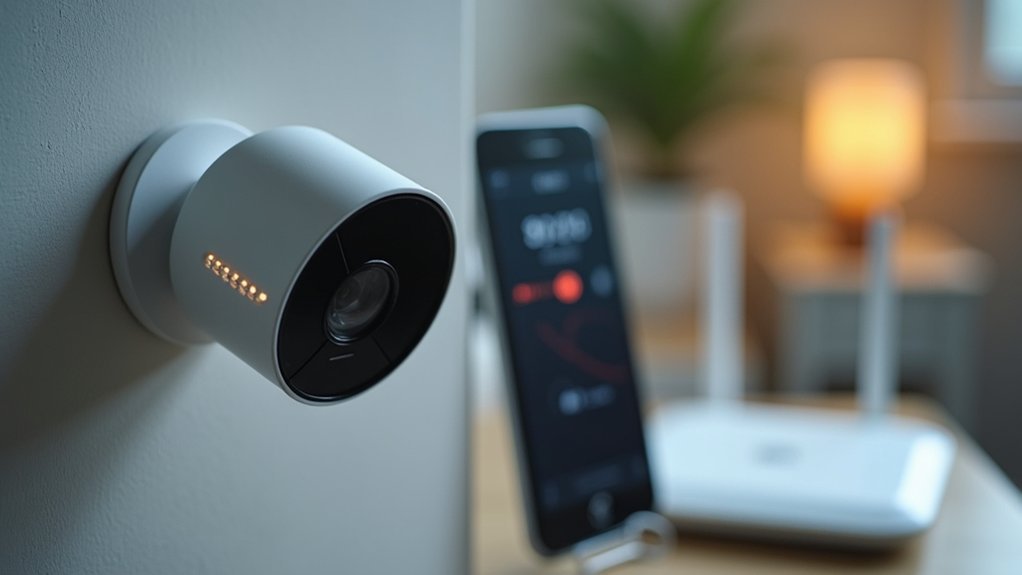
If you wish to lock down your smart camera right now, start with the basics and work outward so each step builds on the last. You’ll want to check camera placement initially. Put cameras where they see entrances but not private spaces. Aim them so neighbors feel respected and you feel safe.
Next, improve physical security through mounting devices high, using theft-resistant screws, and covering cables. Then limit exposed ports and close unused network connections to reduce risk.
You’ll monitor firmware updates often and install them quickly. Keep device accounts under your trusted family or household group to share responsibility.
Finally, evaluate access from outside your home so you know who can log in and how easy or hard it is.
Change Default Passwords and Use Strong, Unique Credentials
When you set up a new camera, start with changing the default password immediately so you don’t leave an open door for anyone to walk through.
You belong to a group that cares for home privacy, and simple steps help protect everyone. Pick strong, unique phrases that you can recall but others can’t guess. Avoid reuse from old accounts because breaches spread quickly. Use password managers or credential vaults to store complex logins so you won’t write them down or forget them.
Rotate passwords periodically and after any suspicious notice. Share access only with trusted people and remove old accounts you no longer use. These actions fit into a calm routine that keeps your home safer and your neighbors reassured.
Enable Two‑Factor Authentication for Camera Accounts
Because someone else can guess or crack a password, adding two factor authentication gives you a second locked door that most attackers can’t get through. You belong in a safe space, and enabling 2FA on your camera account helps build that trust. Use authentication apps for codes, or a hardware key provided it is available. Set up account recovery options now so you don’t lose access afterward.
| Step | Action |
|---|---|
| 1 | Find 2FA in account settings |
| 2 | Choose authentication apps |
| 3 | Scan QR code or register key |
| 4 | Save backup codes securely |
| 5 | Update account recovery info |
You’ll feel supported whenever friends or family help set this up, and attackers will find your cameras far harder to reach.
Update Camera Firmware and Mobile Apps Regularly
You should check for firmware updates on your camera regularly because manufacturers patch security holes that attackers exploit.
Also keep the mobile app on your phone current so fixes and privacy options work the way they should. In case updates are automatic you can relax a bit, but in the event they aren’t set a reminder so you don’t leave your camera exposed.
Check Firmware Updates
Should your camera acts like it’s fine but the maker pushed a patch, don’t ignore it—updates fix security holes that crooks and bots love to exploit. You belong with others who care, so check for firmware vulnerabilities often and act once you see update notifications.
Set your camera to install patches automatically in case it can. In case it cannot, schedule a quick monthly check and follow the maker’s guidance.
Look for firmware annotations that mention security fixes, not only new features. Keep a simple log of version numbers so you know when a device falls behind.
Once a camera is old and stops getting updates, plan to replace it. That way you protect your home and stay connected to a community that values safety.
Keep Mobile Apps Current
Curious why your camera app still feels slick while a concealed bug waits to pounce? You want safety and community, so check update notifications and install them. Updates patch holes attackers use and keep app permissions tight. Treat firmware and app updates as teamwork between you and the maker. You’ll get better protection once you act.
| Why update | What to do |
|---|---|
| Fix security holes | Install updates promptly |
| Improve features | Enable auto updates |
Also review app permissions after updates. Turn off unused access like microphone or location. Accept notifications for critical patches, but pause nonessential alerts. In case an update seems odd, contact support and ask for advice. You’re not alone keeping your camera secure; small steps matter.
Put Cameras on a Separate Network or Guest Wi‑Fi
You should put your cameras on a separate network or guest Wi‑Fi so their traffic stays isolated from your main devices. This makes it harder for a compromised camera to reach your laptop or phone and helps you use strong router segmentation to control what can pass between networks.
Start by limiting cross network access in your router settings and you’ll greatly reduce the chance of a privacy breach.
Isolate Camera Traffic
At the moment you separate your cameras onto their own network or guest Wi Fi, you reduce the chance that a single hacked device will give attackers a ticket to your whole home. Whenever you isolate camera traffic, you practice good network segmentation and keep video streams away from your laptops and phones.
You’ll want traffic monitoring to spot odd uploads or unknown IPs, and that helps you act fast. Set a clear SSID name, use a strong password, and limit device access to only what the camera needs. Check logs regularly, update firmware, and restrict cloud connections when possible.
You’ll feel safer understanding cameras can’t reach sensitive devices, and your household will share responsibility for protecting its privacy.
Use Strong Router Segmentation
Should you put your cameras on a separate network or guest Wi Fi, you stop a single compromised camera from giving attackers a path to your laptops, phones, or smart speakers. You’ll feel safer once you use network segmentation to keep devices apart.
Start with creating a guest SSID just for cameras and IoT gear. Set strong passwords, pick WPA3 assuming your router supports it, and turn off device-to-device sharing. Enable traffic isolation so each camera talks only to the cloud or your recorder.
Update firmware and change default logins before joining the network. Evaluate access from your main devices to confirm separation.
In case you need help, your router maker or community can guide you step by step with patience and care.
Limit Cross‑Network Access
Because cameras often collect sensitive moments, put them on a separate network so a single compromised device won’t expose your phone, laptop, or work files. You want to belong to a safe home where everyone’s devices play according to the same rules.
Set up a guest Wi-Fi or VLAN for cameras so they can’t talk to personal devices. That reduces cross network vulnerabilities and stops an unauthorized device from roaming into your files. Name the network clearly, change default passwords, and update firmware often. Limit remote access and use strong Wi-Fi encryption.
Check connected devices regularly and remove anything unfamiliar. In case you share space, invite others to use the guest network so cameras stay isolated and trust grows.
Harden Your Router: WPA3, Secure DNS, Disable UPnP
Should you want to stop strangers from poking around your cameras, start with the router because it’s the gatekeeper for every device on your network. You’ll reduce router vulnerabilities through updating firmware, using WPA3, and setting a strong unique password. Switch to secure DNS to avoid dns spoofing and pick a trusted provider or encrypted DNS over HTTPS. Turn off UPnP so devices can’t open ports without your say so. You belong to a group that cares about safety, and these steps protect everyone in your home.
| Action | Why it helps |
|---|---|
| Update firmware | Fixes known flaws |
| Use WPA3 | Stronger Wi Fi encryption |
| Disable UPnP | Prevents automatic port opening |
Limit Cloud Storage and Use Secure Local or Paid Options
You can keep most footage off the internet through choosing local storage options like an encrypted microSD card or a network video recorder you control.
Then check any cloud service carefully for strong encryption, clear retention rules, and strict access controls prior to sending footage there.
Should you want cloud convenience, prefer a paid plan that guarantees end to end encryption and audited security so your private moments stay private.
Choose Local Storage Options
During the period you desire strong privacy for your home videos, choosing local storage over constant cloud backups can make a big difference. You want control, and local options give it. Pick network attached storage, microSD cards in the camera, or a small home server.
Use offline backups so a lost account or breach won’t expose your recordings. Buy encrypted drives or add software encryption to protect files at rest.
Keep devices updated and change default passwords, and you’ll lower risk from common camera exploits. In case you pay for a service, prefer one that supports local export and strong encryption.
Talk with family about where footage lives so everyone feels safe and included in protecting your space.
Verify Cloud Service Security
How do you know a cloud service truly protects your home videos in case so many cameras and accounts end up exposed? You want to trust a service that uses cloud encryption and clear data residency rules. Ask about where servers sit, who can access logs, and whether keys stay under your control.
| What to ask | Why it matters |
|---|---|
| Encryption type | Protects footage in transit and rest |
| Server location | Determines legal access rights |
| Access controls | Limits who can view or pull data |
You should limit automatic cloud uploads, prefer local backups, and pick services that let you control retention. Seek vendors who share audits and let you enable multi factor access. That builds trust and keeps your household safer without feeling alone.
Prefer Paid Encrypted Plans
Because paying a little for encrypted cloud storage gives you real control, choose a paid plan that locks footage with strong encryption and clear access rules. You want belonging and safety, so pick encrypted subscriptions from vendors that show who can view, download, or share clips.
Use secure payment methods and keep billing accounts separate from other online logins. Prefer plans that limit cloud retention and let you archive locally whenever possible.
Check for end to end encryption, multi factor access, and transparent breach policies. Ask support about key management and device registration.
Once you blend paid services with secure local storage, you reduce exposure and feel more in charge. Trust grows when controls are simple, visible, and shared with people you name.
Review Camera App Permissions and Account Access
Upon opening a camera app, expect it to ask for things it actually needs and question anything that seems extra; this is your initial line of defense for keeping footage private and accounts secure. You should do a regular account review and check third party permissions so you and your circle feel safe. Revoke access for apps you don’t recognize. Use strong unique passwords and enable two factor whenever offered. Share access only with people you trust and remove past devices. Update app permissions after firmware or ownership changes. Below is a quick reference to guide your checks and keep everyone included and reassured.
| Check | Action |
|---|---|
| Permissions | Revoke unused third party permissions |
| Passwords | Create unique strong passwords |
| Two Factor | Enable two factor authentication |
| Shared Access | Limit and audit shared accounts |
| Device List | Remove unknown or old devices |
Configure Camera Privacy Features: Motion Zones, Audio, LEDs
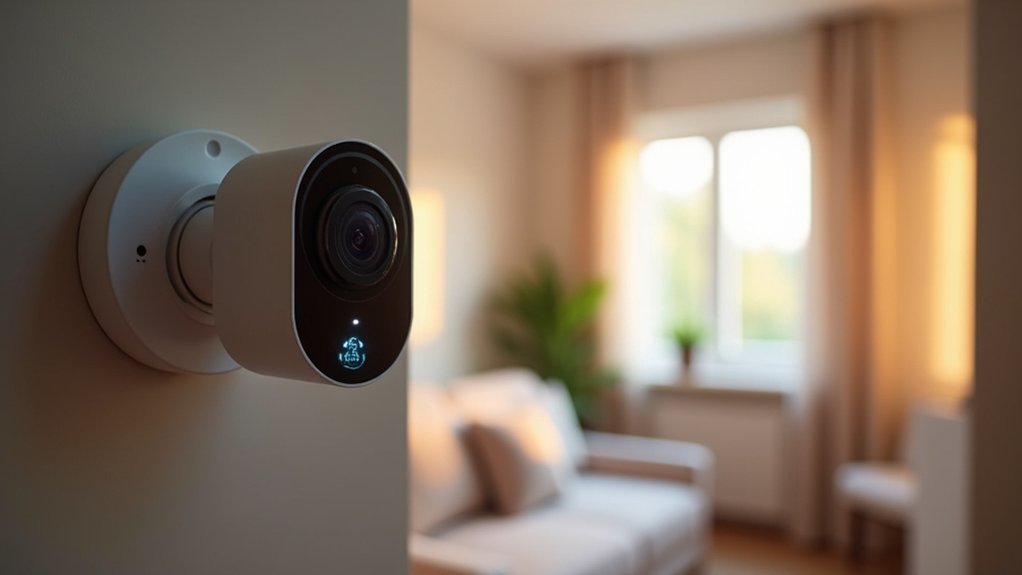
At the moment you set up motion zones, audio controls, and LED indicators on your camera, you’re taking direct control of what it watches, listens to, and tells others about, and that choice can make your home feel safer and more private.
You can draw privacy zones to block windows or neighbors so motion detection stays focused on doors, paths, and shared spaces. Then adjust sensitivity to cut false alerts and save storage.
Use audio control to mute interior mics whenever you want quiet privacy or enable two way speech whenever you expect guests. Turn off led indicators at night to avoid signaling activity or leave them on for family reassurance.
These steps help you protect moments, share trust, and belong to a safer community.
Audit Sharing: Remove Users, Expire Links, Avoid Public Shares
You’ve already shaped what your camera sees, hears, and shows, and now you should look at who can access those feeds. Check user access regularly and remove anyone who no longer needs it.
You’ll feel safer whenever you prune old accounts, revoke shared viewers, and limit admin roles to people you trust. Use link expiration for temporary access whenever you must share clips. Set short lifetimes, require passwords, and avoid public shares that anyone can find.
Review shared albums, cloud links, and app permissions in one pass so you can spot forgotten links. When you remove users and expire links, you reduce risk and keep your circle tight.
Trust grows when access is simple, clear, and well managed.
Pick Privacy‑Focused Brands and What to Check in Policies
Curious which camera brand will actually respect your privacy and not expose your home? You want a maker that shows brand transparency, so check where their servers are, whether they publish audits, and in case they answer security questions openly.
Look for clear policy enforcement details in the privacy policy, like how long footage is kept, who can access it, and how breaches are handled. Read terms about data sharing with partners and law enforcement.
Prefer vendors that let you control storage, offer local mode, and publish firmware update schedules. Notice whether they support strong passwords, two factor login, and revoke access easily.
Trust grows once a brand admits limits, fixes problems fast, and treats you like a member, not a product.
Protect Physical Access: Tamper Alerts, Placement, Locks
Should someone be able to reach or see your camera, they can turn it off, block its view, or steal it, so you’ll want to focus on placement, tamper alerts, and physical locks right away.
You care about safety and belonging, so pick secure placement where cameras are visible enough to deter but out of easy reach. Enable physical tamper alerts so you know whether someone touches or moves a device. Combine alerting with locks and mounts that resist theft.
- Mount cameras high and angled for coverage and out of reach
- Use tamper resistant screws or cages for outdoor units
- Choose mounts with lockable brackets or cable locks
- Place cameras where neighbors and family can see them also
These steps keep you connected and protected.
Monitor Logs, Test Alerts, and a Simple Incident Response Plan
In case you depend on cameras to keep your home and family safe, monitoring logs, evaluating alerts, and having a simple incident response plan become as essential as the cameras themselves.
You should set routine log reviews to spot odd access times, repeated failed logins, or unknown IP addresses.
Evaluate alerts weekly so you trust notifications and reduce false alarms.
Create a short incident plan that says who you call, once you disconnect a camera from the network, and how you preserve footage.
Practice incident drills with family so everyone knows roles and stays calm.
Link log reviews and drills through using findings to improve alert sensitivity and update the plan.
This steady loop builds confidence and shared responsibility.
Frequently Asked Questions
Can My Smart Camera Footage Be Used in Legal Proceedings Without My Consent?
Yes. Whether footage can be used in court depends on local laws, whether the recording was lawfully made, and whether it can be authenticated and shown to be relevant and properly preserved; consult a lawyer to understand the rules that apply in your jurisdiction.
Can Voice or Biometric Data From Cameras Be Sold to Third Parties?
Yes. Companies may sell voice and biometric data unless specific legal or contractual protections apply. Require biometric data be stored encrypted with strong key management and that voice data be processed to remove identifiable features before sharing. Insist on clear, accessible policies detailing what data is collected, how it is used, who it is shared with, and how long it is retained. Coordinate with others and advocate for legislation that limits commercial use and requires meaningful consent, audit rights, and timely deletion.
Do Cameras Continue Recording if Cloud Service Shuts Down?
Sometimes yes. If your camera includes local storage or supports offline recording, it will continue saving footage on the device even if the cloud service shuts down. Check the camera’s settings and consult community guides so you can share reliable setup tips.
Can Neighbors Legally Point Cameras at My Private Property?
Nearly half of homeowners report concern about nearby surveillance. Laws typically bar recording activity on private land that is not visible from public spaces. Review your municipality’s privacy and surveillance ordinances, document camera placement and what is being recorded, and raise the issue with your neighbor calmly. If the camera continues to capture your private areas, consult your homeowners association, a local mediator, or an attorney to learn your enforcement options.
What Are Signs a Camera Has Been Backdoored by Malware?
You’ll see unauthorized access indicators such as altered firmware versions, LEDs blinking in patterns that do not match normal operation, sudden surges in outbound network traffic, and file timestamps or recordings that show gaps or unexpected edits. Logs may contain repeated failed or successful logins from unknown IP addresses and new user accounts you did not create. The camera may reboot frequently without scheduled updates and exhibit unexplained pan, tilt, or zoom movements that do not correspond to user commands.
