You’ve probably felt the frustration of juggling three apps to turn off lights, lock doors, and set the thermostat, and that’s exactly what multi‑device automation fixes. It connects lights, locks, speakers, and climate controls so they act together once you leave, settle in for a movie, or wake up, and it does this while keeping access safe and simple for everyone in the home. Start off grouping devices per room, pick a hub or voice assistant that fits your privacy needs, and build routines that trigger from sensors, schedules, or your phone’s location. As you add rooms and users, look for role based permissions and energy reports so the system stays calm, efficient, and easy to own—then try a few combos to see what sticks.
Identify the Problems Multi‑Device Automation Solves
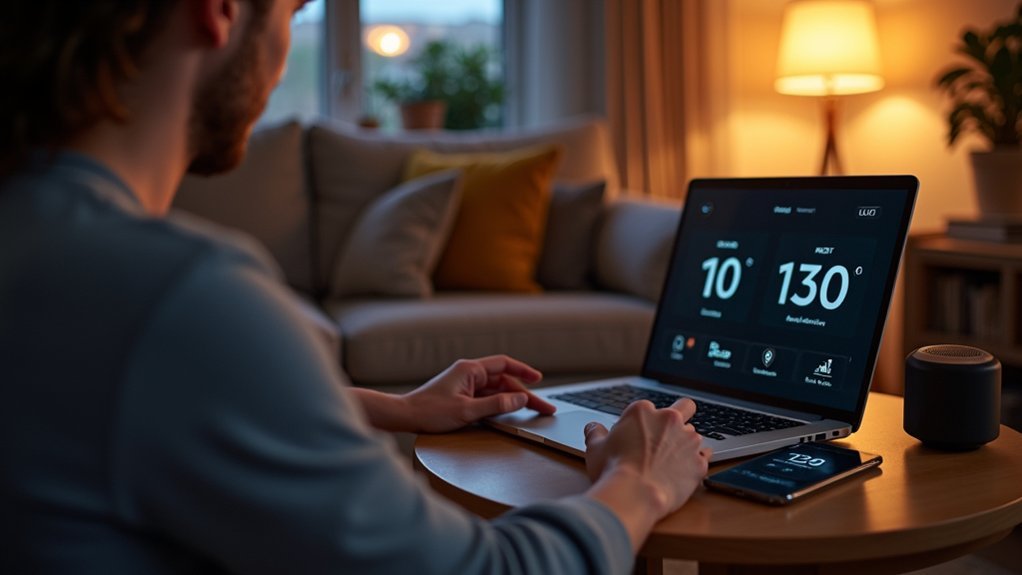
Consider multi-device automation as the helpful glue that removes everyday friction from your home or workplace. You feel the strain whenever device incompatibility makes simple tasks take too long. You face fragmented control across apps, remotes, and platforms, and that wears on your patience.
You want to belong to a space that just works, where lights, locks, and thermostats respond together. Multi-device automation joins these elements so they act as one team. It mends mismatched protocols, reduces repeated steps, and keeps routines consistent for everyone who shares the space.
It lowers mistakes and frees you to focus on people, not tech. You’ll gain calm, shared control and more time to enjoy moments with those who matter.
Checklist: Multi‑Device Automation Essentials
You’ve felt the relief once devices finally act together, and now you’ll want a clear checklist to make that happen reliably in your home or workplace.
Start through mapping your goals so every device serves a purpose you share with others. Next, pick automation structures that suit your comfort and scale, and check they support device interoperability so things talk smoothly.
Verify network strength and secure access, then list firmware and app updates to keep compatibility steady. Observe power and placement for sensors and controllers to avoid blind spots.
Create simple rules for conflict resolution and assess them with real routines. Invite family or teammates to review and adjust settings together so everyone feels included and confident.
Choose Your Control Method: Hub, Assistant, or Cloud
Whenever you pick how to control your smart setup, consider a local hub for speed and privacy because it keeps logic and data on your devices.
You can also use an assistant for easy voice control and simpler routines, or choose cloud services for remote access and heavier analytics.
Each option has trade offs, so we’ll compare local hub advantages with cloud versus assistant to help you select what feels right.
Local Hub Advantages
In case you want reliable control that keeps your data at home, a local hub gives you that peace of mind while still letting you mix and match devices from different brands. You’ll appreciate local processing that keeps automations fast and private. You can build routines that run even in the event the internet drops. You’ll feel included whenever your devices work together without forcing one brand on you because device independence matters to a caring household.
A local hub connects many protocols and integrates with community projects that share updates. It makes troubleshooting simpler and invites you to learn alongside others.
You’ll enjoy a cozy sense of control, being aware your setup is resilient, responsive, and respectful of your privacy while staying flexible as your needs change.
Cloud Versus Assistant
In case you want simple control that still respects your privacy, choosing between a local hub, a voice assistant, or cloud services comes down to how much control, convenience, and privacy you want.
You’ll weigh cloud latency against seamless remote features, and you’ll consider whether assistant updates arrive often enough to keep things fresh.
Should you pick a cloud path, you get easy setup and remote access, but you’ll share data and accept occasional delays. Should you pick an assistant, you get voice ease and regular feature additions, yet you depend on provider pushes.
A local hub keeps your data at home, runs logic fast, and promotes community confidence.
You can mix methods to match comfort, control, and belonging.
Map Your Home: Group Devices by Room and Routine
Start through mapping your home into room-based device groups so each light, sensor, and switch belongs to a clear place you can manage.
Then create routine-driven automations that tie those groups to daily activities like waking up, leaving, or winding down, and evaluate them so they feel natural.
Use a visual home map in your dashboard to see device locations and routine triggers at a glance, which makes editing and troubleshooting simple and friendly.
Room-Based Device Groups
Consider room-based device groups as a simple map of your home that turns scattered gadgets into one helpful team. You’ll label rooms, add lights, speakers, sensors, and locks into device grouping so each area feels cared for.
That gives you clear zone management where actions apply to a place instead of single items. You’ll enjoy shared control with others in the house. You can tap a room to set mood, check status, or silence alerts.
You’ll find it easier to teach guests and family how to use things. Once you make changes, they propagate across dashboards and apps, so everyone stays in sync. This brings comfort, reduces friction, and builds confidence that your space works together for you.
Routine-Driven Automations
At the point you group devices according to room and tie them to daily routines, your home starts to act like a helpful friend that knows what you need prior to you ask. You’ll set event scheduling that matches wake up, work, and wind down times, so lights, blinds, and thermostats respond together.
You’ll create adaptive routines that learn preferences and shift gently with your week. You’ll feel supported rather than managed.
Pair room groups with simple triggers like motion, time, or sensor change, and then layer alerts or safety checks. You’ll tweak sequences easily from a dashboard, and invite family members to share control. That shared control builds trust, belonging, and calm in the space you live in.
Visual Home Mapping
A simple home map makes your smart setup feel familiar and calm, like walking through rooms with a friend who knows your habits.
You’ll use interactive diagrams and layered interfaces to group devices according to room and routine, so everything feels personal and simple. Start small, then grow your map as trust builds.
Use visuals to link lights, sensors, and scenes to moments you share at home.
- Map rooms with icons that match how you live
- Layer routines over rooms so morning, away, and evening act together
- Let each family member have a view that fits their day
This approach helps you belong to a shared system that’s clear, warm, and easy to use.
Create Core Routines: Leaving‑Home and Movie‑Time Step‑By‑Step
Start through picturing your routines as simple scripts that save time and calm your mind. You notice user habits like leaving lights on or forgetting locks.
Begin leaving home via linking motion sensors, locks, thermostat, and lights so device synchronization triggers a single leaving sequence. You set conditions, like all doors closed and phones away, then tap or schedule the routine.
For movie time you dim lights, close shades, route audio, and set preferred display input with one press. Evaluate each step and adjust delays so actions feel natural.
Invite housemates to share the routine so everyone belongs. Keep names clear, keep steps few, and use friendly messages so routines fit daily life and make home feel easier and warmer.
Link Devices Across Brands Safely
During the period you connect devices from different brands, keep safety and simplicity foremost so your home works together without surprises. You want devices to belong to one trusted system and feel safe. Start off by choosing hubs and apps that support cross brand encryption and clear multi user permissions. That helps protect data and lets families share control without fear.
- Pick platforms with local control and encryption so data stays private.
- Set tiered multi user permissions so guests and kids get limited access.
- Use verified integrations and keep firmware updated to reduce weak points.
Trust grows as you set boundaries and include loved ones in choices. You’ll feel confident as devices cooperate, and you’ll enjoy a seamless, secure home together.
When to Use Scripts and Conditional Logic
You’ll want to automate simple tasks like turning lights on at sunset without extra logic, and save scripts for flows that need several steps or precise timing.
Whenever conditions stack up, such as occupancy plus daylight plus energy pricing, use conditional logic to keep actions predictable and safe.
Start small, evaluate each branch, and you’ll build confidence as your routines handle more complex situations.
When To Automate
Whenever you decide to automate, consider the everyday tasks that steal your time or interrupt your flow, because those are the best places to start. You want automation timing to match real life, and you want event triggers that feel natural.
Contemplate routines you share with others, so everyone benefits and feels included.
- Morning routines that save minutes for the whole household
- Repeating chores like lights off, thermostat set, or device updates
- Safety checks such as door locks, leak sensors, and smoke alerts
Start small and grow your scripts as trust builds. Use clear names and simple conditions so others can understand.
Experiment with family or roommates, adjust schedules together, and keep rules visible in your dashboard so everyone feels control and connection.
Handling Complex Conditions
Once your home routines start to split into many conditions and occasions, you need clear rules that run reliably and without constant babysitting. You’ll lean on scripts whenever single automations get crowded. Scripts let you sequence actions, reuse steps, and evaluate changes safely.
Use conditional logic to check states initially, then act. Combine layered triggers so events cascade without conflict. Give devices roles and assign flexible priority so urgent actions win whenever sensors disagree.
You’ll keep rules readable by naming parts, grouping similar checks, and commenting intent. Evaluate each path with simulated events, then watch logs during real runs. Invite others to review rules with you. That shared care keeps your system resilient and welcoming.
Secure Your Automations: Privacy and Best Practices
How do you keep your smart home from becoming a privacy risk while still enjoying its convenience? You can protect your space through choosing clear data encryption and tight user permissions so everyone in your household feels safe and included.
Start with these friendly steps you can follow.
- Limit third party access and review app permissions regularly so only needed services see your data.
- Use strong local hubs or platforms that keep logic on your device to reduce cloud exposure and enable encryption.
- Create individual accounts, set role based user permissions, and rotate passwords to keep trust high.
You’ll build habits that protect privacy and keep automation useful.
Share settings with family, teach simple controls, and check logs together to keep everyone confident and connected.
Estimate Savings: Measure Energy and Cost Impact
In case you want to know whether your smart devices are saving you money, start through measuring what they actually use and how that use maps to your bills. You’ll want simple energy tracking initially.
Add device sensors or a whole-home monitor to see watts in real time. Then log usage trends daily and weekly so you spot habits.
Next apply cost forecasting upon multiplying kilowatt hours with your tariff. Use seasonal and peak rates too.
Compare automated schedules versus manual use to see real differences. Share findings with family or housemates so everyone feels included and can tweak behavior.
Keep measurements local whenever possible for privacy and reliability and revisit numbers after any automation change.
Troubleshoot Common Automation Failures Fast

Ever contemplated why an automation that worked yesterday suddenly stops responding today? You’re not alone and you’ll feel better fixing it stepwise. Start with error logs to spot failures and timestamps.
Then run simple connectivity checks to verify devices and hubs talk to each other. Be kind to yourself while troubleshooting and invite others to help should needed.
- Check error logs for clear messages, then trace the action that failed
- Run connectivity checks on Wi Fi, mesh, and hub links, reboot should needed
- Validate device states in your dashboard and examine triggers manually
These steps flow together because logs show what went wrong and connectivity checks show why. You’ll regain control and keep your system reliable.
Scale Your System: Rooms, Users, and Advanced Triggers
Once you grow from a single room to a whole house, you’ll want a clear plan for rooms, users, and advanced triggers so your system stays simple and reliable. You’ll map each room to specific devices and scenes, and you’ll name spaces so everyone recognizes them.
Then you’ll set user roles to grant neighbors, family, or guests the right access without worry. You’ll assign admins who can edit automations and viewers who can control lights.
As you scale, you’ll layer advanced triggers that combine time, motion, and sensor data to act only at necessary moments. You’ll trial and iterate with loved ones, so the system feels shared and safe.
You’ll keep rules clear, reduce overlaps, and welcome feedback as you grow.
Best Device Combinations and Platforms to Try Next
You’ve planned rooms, roles, and smart triggers, so now let’s look at what devices and platforms work best together as you expand. You want combinations that feel friendly, reliable, and welcoming. Prioritize device compatibility so gadgets just talk to each other, and choose platforms with platform scalability so your setup grows without stress.
Try pairing local controllers with cloud assistants for balance. Mix sensors, smart switches, and voice or app control to cover everyday needs.
- Home Assistant with Thread and Matter devices for strong local control and wide compatibility
- Samsung SmartThings plus Zigbee or Z-Wave sensors for easy multi-protocol support and steady growth
- Commercial energy or unified control options should you require professional scale and analytics
These mixes keep things simple and connected as you add people and rooms.
Frequently Asked Questions
Can Multi-Device Automations Work Without a Home Internet Connection?
Yes. When your system supports local control and runs automations on a device in your home, those automations continue to operate and your devices and community-made integrations remain available even if your internet connection fails.
How Do Automations Handle Firmware Updates That Change Device Behavior?
Over time automations adapt: they verify firmware compatibility, pause or modify specific routines when device behavior changes, and apply staged update scheduling so devices remain functional and groups retain membership.
Can I Revert to Previous Automation States After Accidental Changes?
Yes. Restore previous automation configurations by using your rollback tool or a saved state backup. Community-created snapshots provide tested versions you can apply to return the system to a trusted automation state quickly.
What Liability Concerns Exist if Automations Cause Property Damage?
If an automation system causes property damage, you may be legally liable and your homeowner or business insurance policy may or may not cover the loss. Keep detailed records of device configurations and software versions, report the incident to your insurer promptly, and work with neighbors, building managers, or local safety organizations to identify root causes and implement shared safeguards.
How Do Automations Interact With Voice Assistants During Outages?
Local automations continue to run, but voice commands that depend on cloud services can stop working. You’ll need to use built-in offline features, consult any local voice assistants, or trigger predefined backup routines. It helps to know community-tested recovery steps are available.
